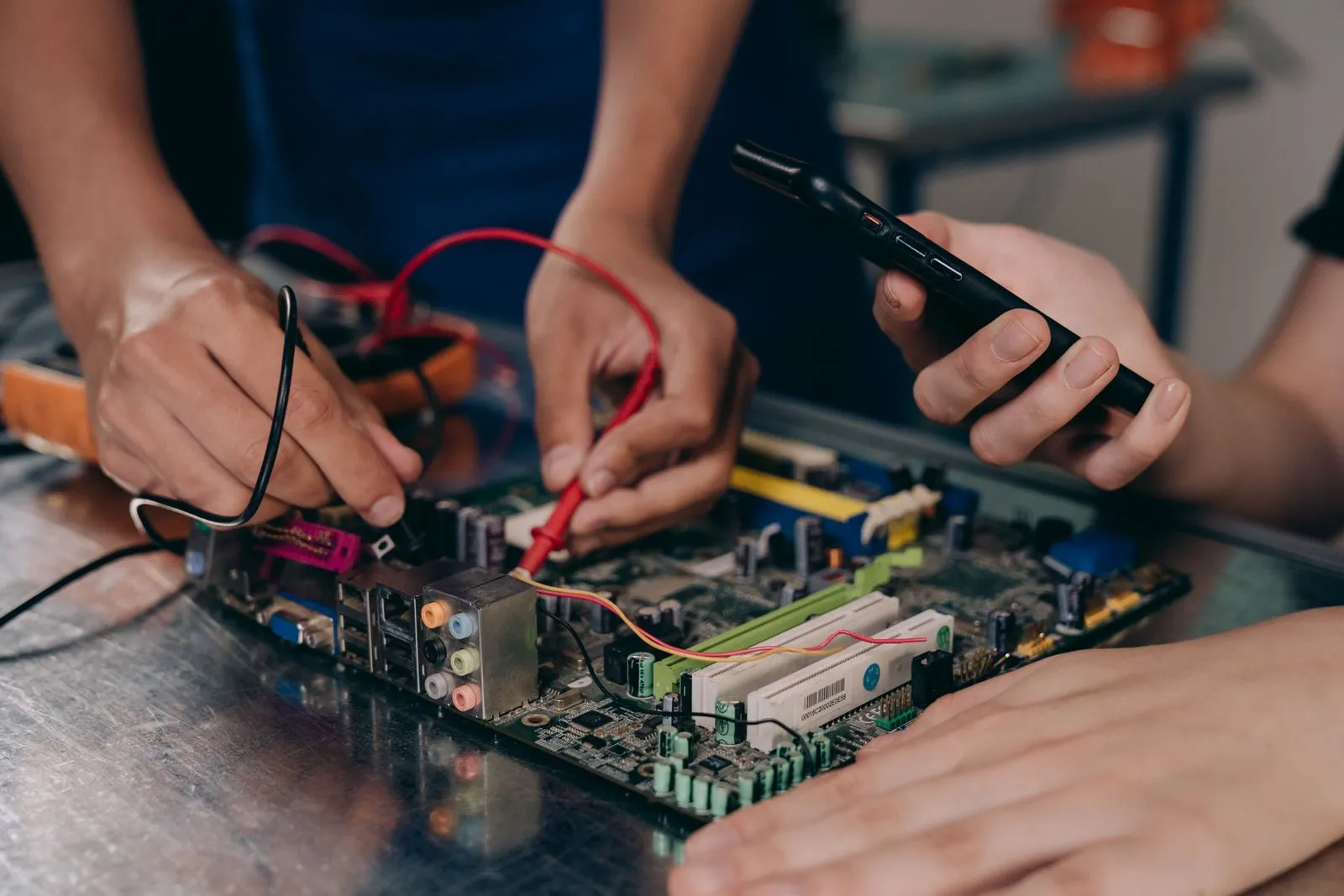
A little preparation can make a computer repair visit more productive. Before you bring in a laptop or desktop, protect the files you can access, write down what the computer is doing, and check which account information may be needed. These steps help explain the problem and can reduce delays during troubleshooting. You do not need to diagnose the issue yourself; clear notes and a safe backup are often more useful than a guess about what failed.
Back Up Important Files
Copy important documents, photos, and other personal files to an external drive or a trusted cloud storage account if the computer still works. Open a few copied files to confirm they transferred correctly. Prioritize anything you cannot easily replace, and avoid relying on a single copy stored on the computer being repaired.
If the computer will not start, makes unusual sounds, or shows signs of drive failure, stop trying to access it repeatedly. Continued use can make some storage problems worse. Tell the repair technician that the files matter and that you have not backed them up. Do not attempt a reset or reinstall just to get the computer ready; those actions can erase data.
Record What You Notice
Write down when the problem began and what you were doing at the time. Note whether it happens every time or only under certain conditions, such as after startup, while opening a specific program, or when connecting to Wi-Fi. Include any recent changes, such as a software update, new device, spill, or drop.
Capture the exact wording of error messages, including any codes. A photo of the screen can help if the message disappears too quickly to copy. Also note unusual symptoms such as unexpected shutdowns, slow performance, warning lights, or loud fan or drive sounds. Specific observations give the technician a clearer starting point.
Prepare Account Details Safely
Bring the device’s power adapter and any essential accessories related to the issue, such as a charger, dock, or external drive. Know the account username and the sign-in method you use, but do not write passwords on a note attached to the computer. Ask the repair provider how they handle access and whether you can enter credentials yourself when needed.
If the computer belongs to an employer, school, or another person, check with the owner or administrator before bringing it in. They may need to approve service or provide access. Remove personal items from the case and keep a record of the device’s make, model, and serial number if available. Avoid sharing account recovery codes unless the provider explains why they are necessary.
Make the Visit More Efficient
Before leaving, list the main problem and your top priority—for example, restoring access, preserving files, or fixing a specific connection issue. Mention any troubleshooting you have already tried and whether it changed the symptoms. This prevents repeated steps and helps set expectations about what matters most to you.
Call ahead to confirm the repair provider’s hours, appointment requirements, and what to bring. Peachtree PC Repair serves Atlanta, and you can contact the shop to ask about preparing your device for a visit. If you cannot back up files or safely access the computer, say so before service begins.
Back up what you can, document the symptoms, and handle passwords and account access carefully. Bringing the charger and a concise problem description can also help the technician begin with useful information. If you are unsure whether a step is safe, leave the computer as it is and ask the repair provider how to proceed.